
PictionaryHub — How to Play
Quick Start (Under 60 Seconds)
- Go to pictionaryhub.com
- Click Quick Play on the homepage
- Pick a word pack (e.g. Party Classics)
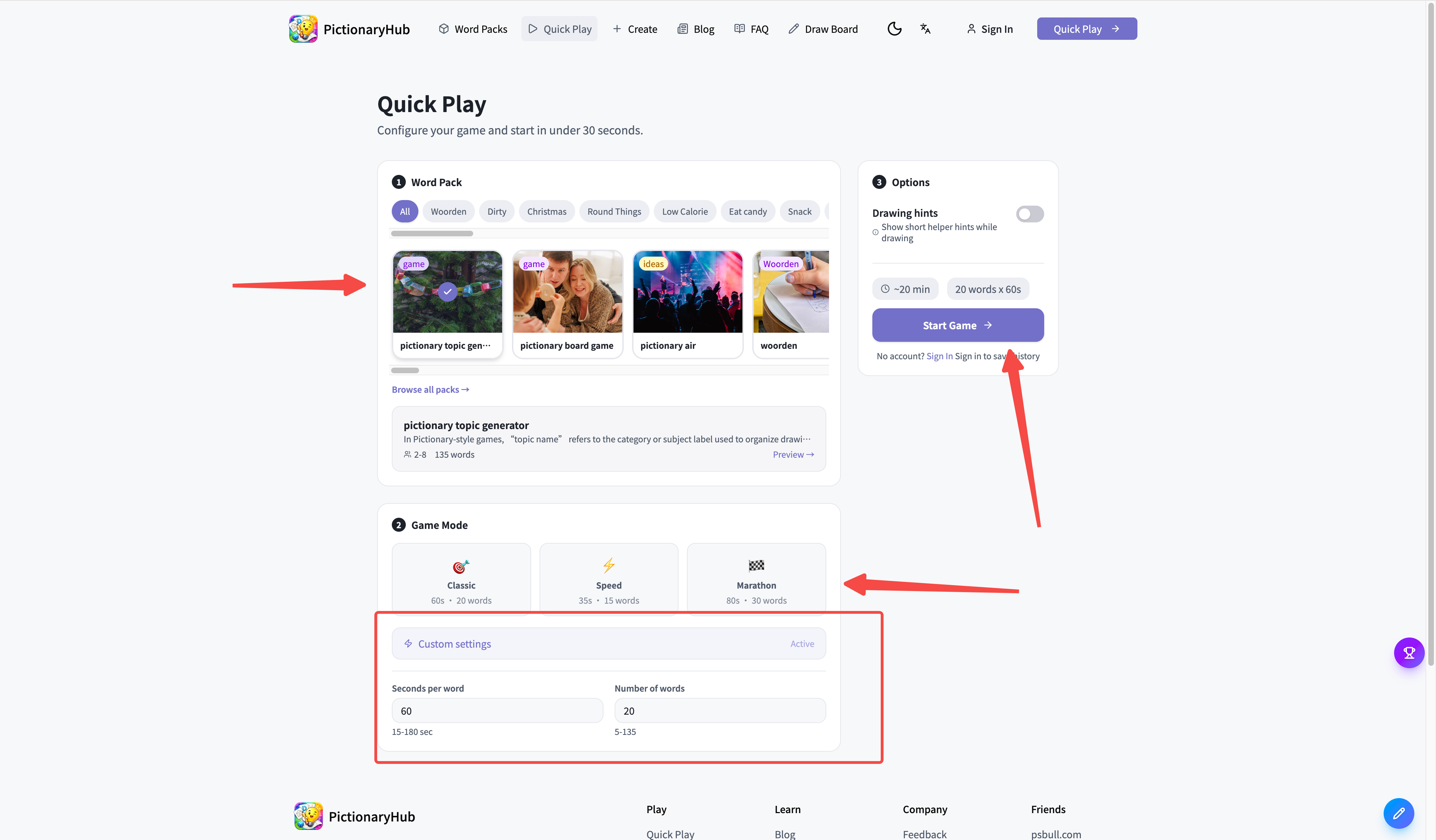
- Choose a time preset (Classic / Speed / Marathon)
- Click Start Game
- Hand the phone to the first drawer — go!
No app download, no account required.
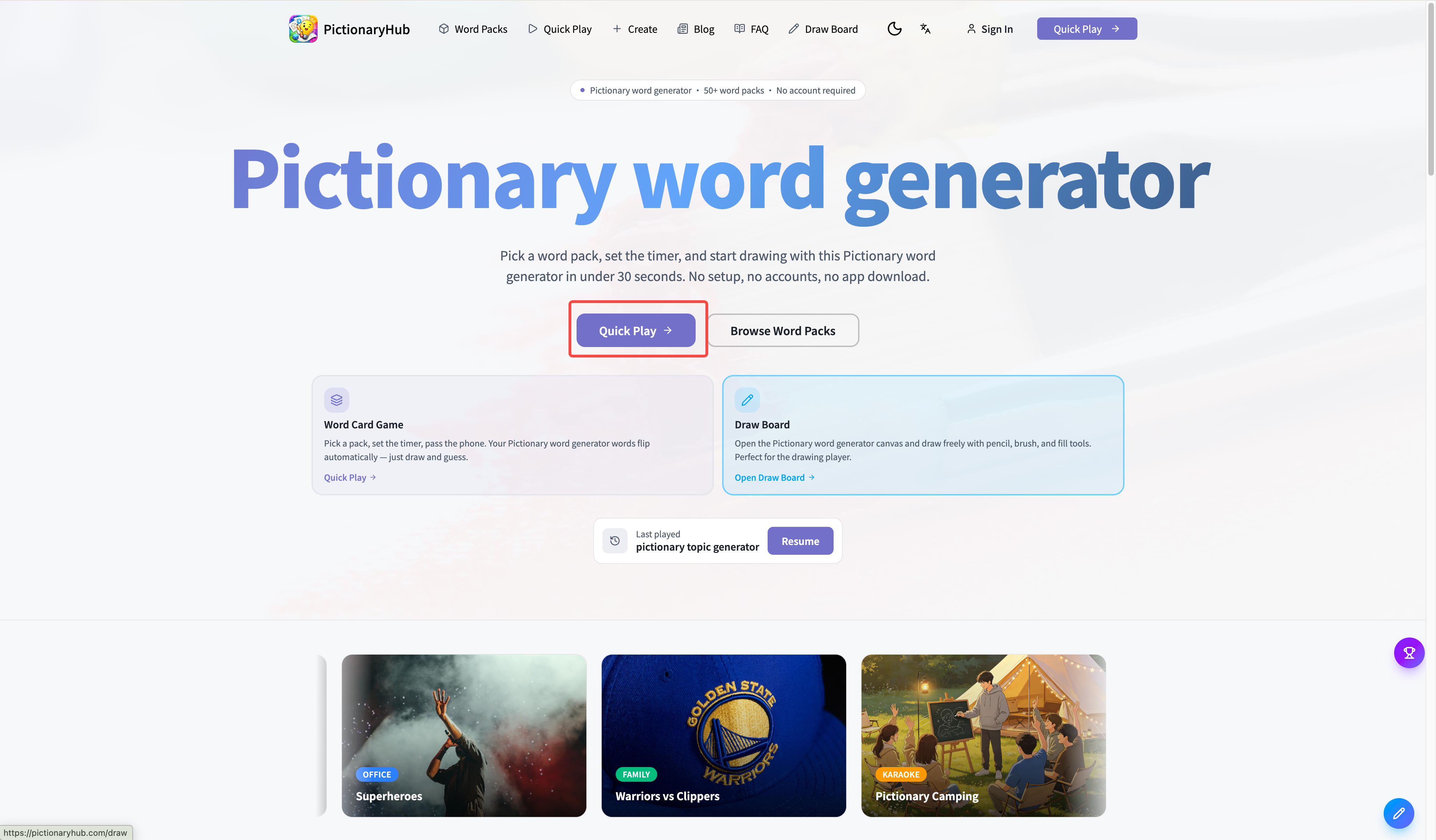
Two Game Modes
Mode 1: Word Card Mode
The core experience. Best for in-person groups.
How it works:
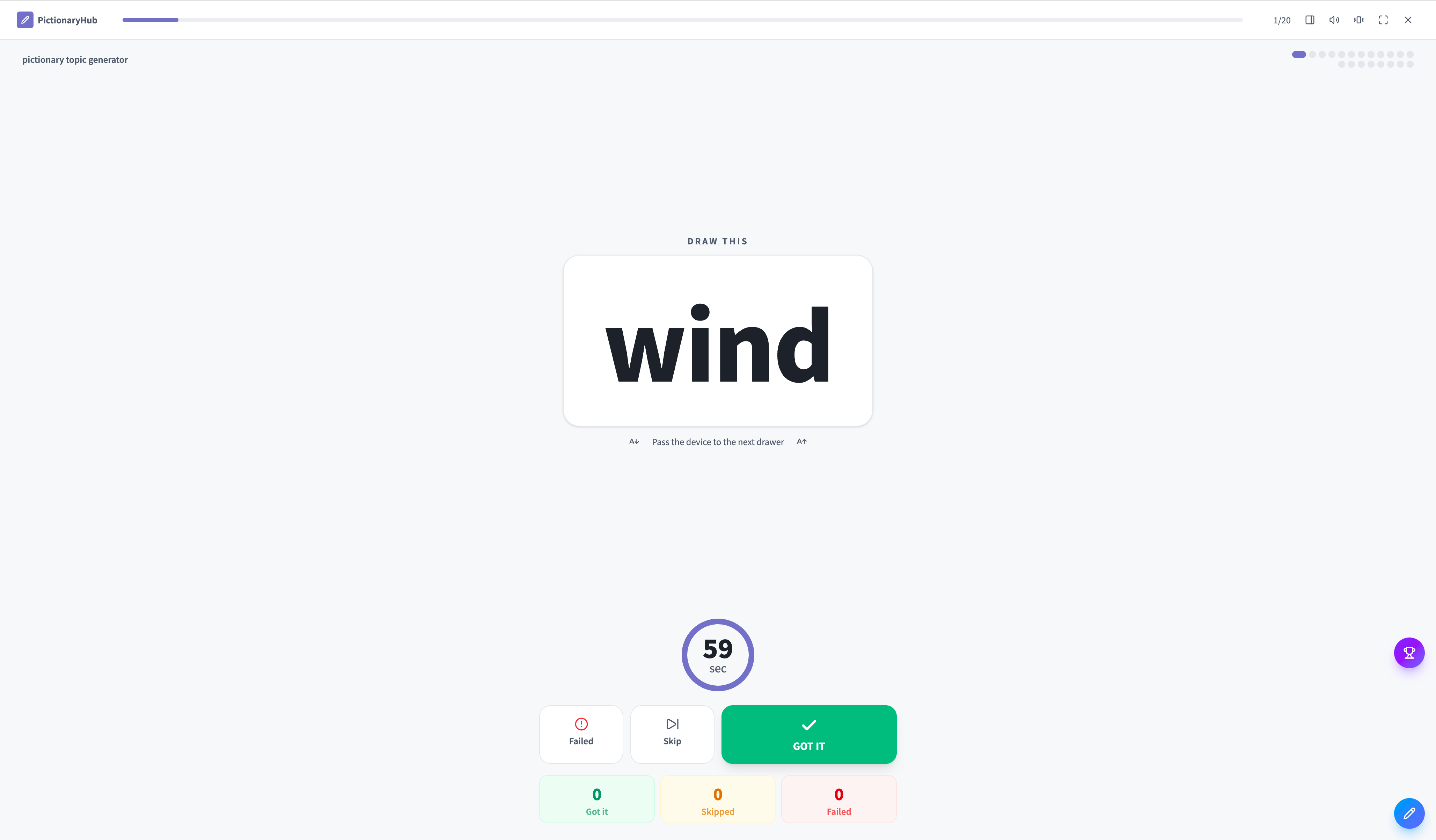
- After selecting a pack and timer, tap Start Game
- A word appears on screen with a countdown timer
- The drawer sketches the word; others guess out loud
- Tap GOT IT ✅ when someone guesses correctly, Skip ⏭ to pass, or Failed ❌ if time runs out
- The next word loads automatically when the timer ends
- After all words, the game ends and you see the round summary
Tips:
- Tap the fullscreen button (top right) to remove distractions
- Enable Drawing Hints to show a reference image alongside the word
- Toggle sound and vibration any time during the game
Mode 2: Draw Board Mode
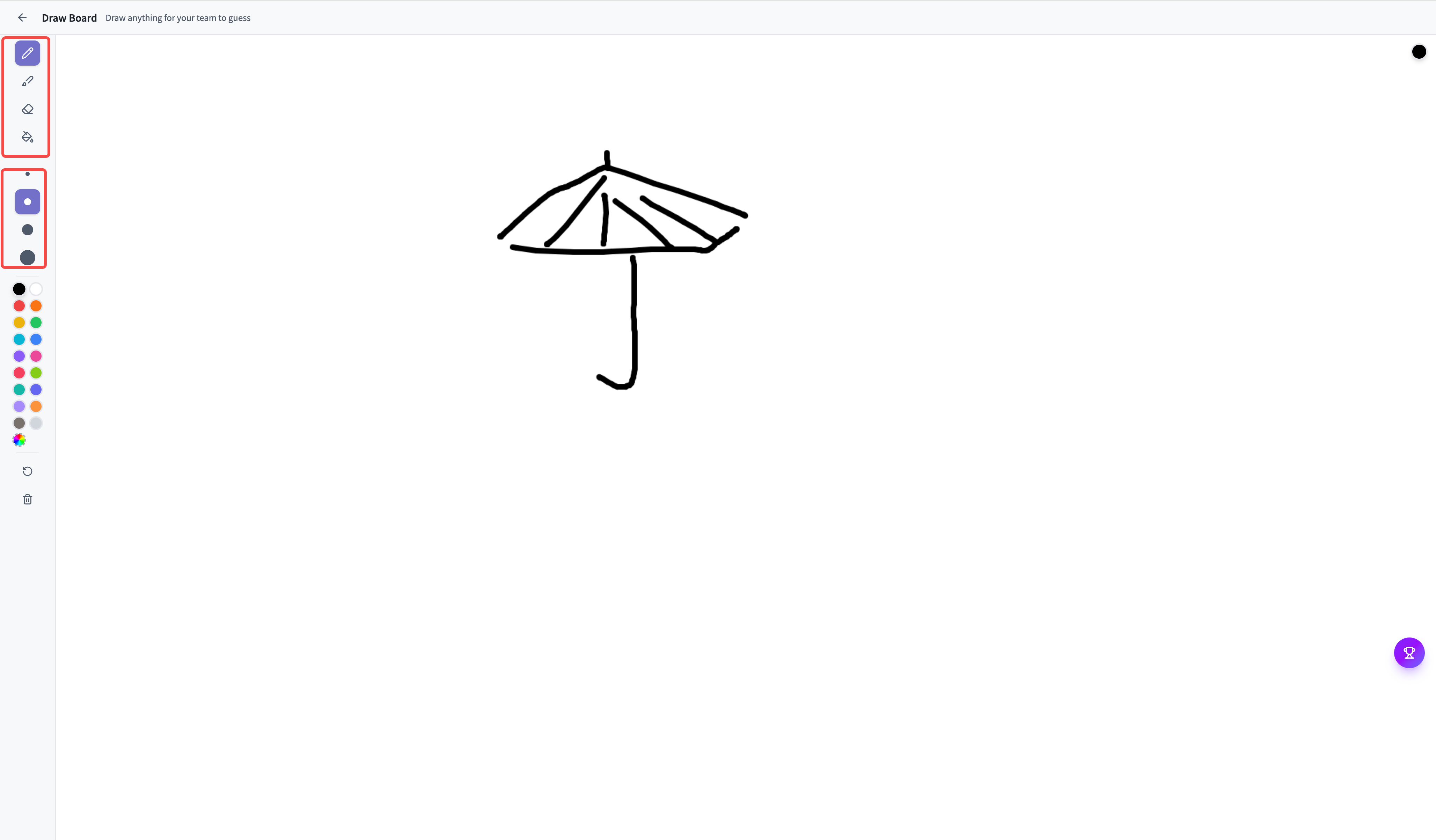
A dedicated canvas for the artist. Great when you want to display the drawing on a shared screen.
Tools available:
- ✏️ Pencil — thin strokes
- 🖌️ Brush — thick strokes
- 🪣 Fill — flood fill large areas
- 🧹 Eraser — fix mistakes
How to open: Click Draw Board in the top navigation, or enable it from the game setup page.
Choosing a Word Pack
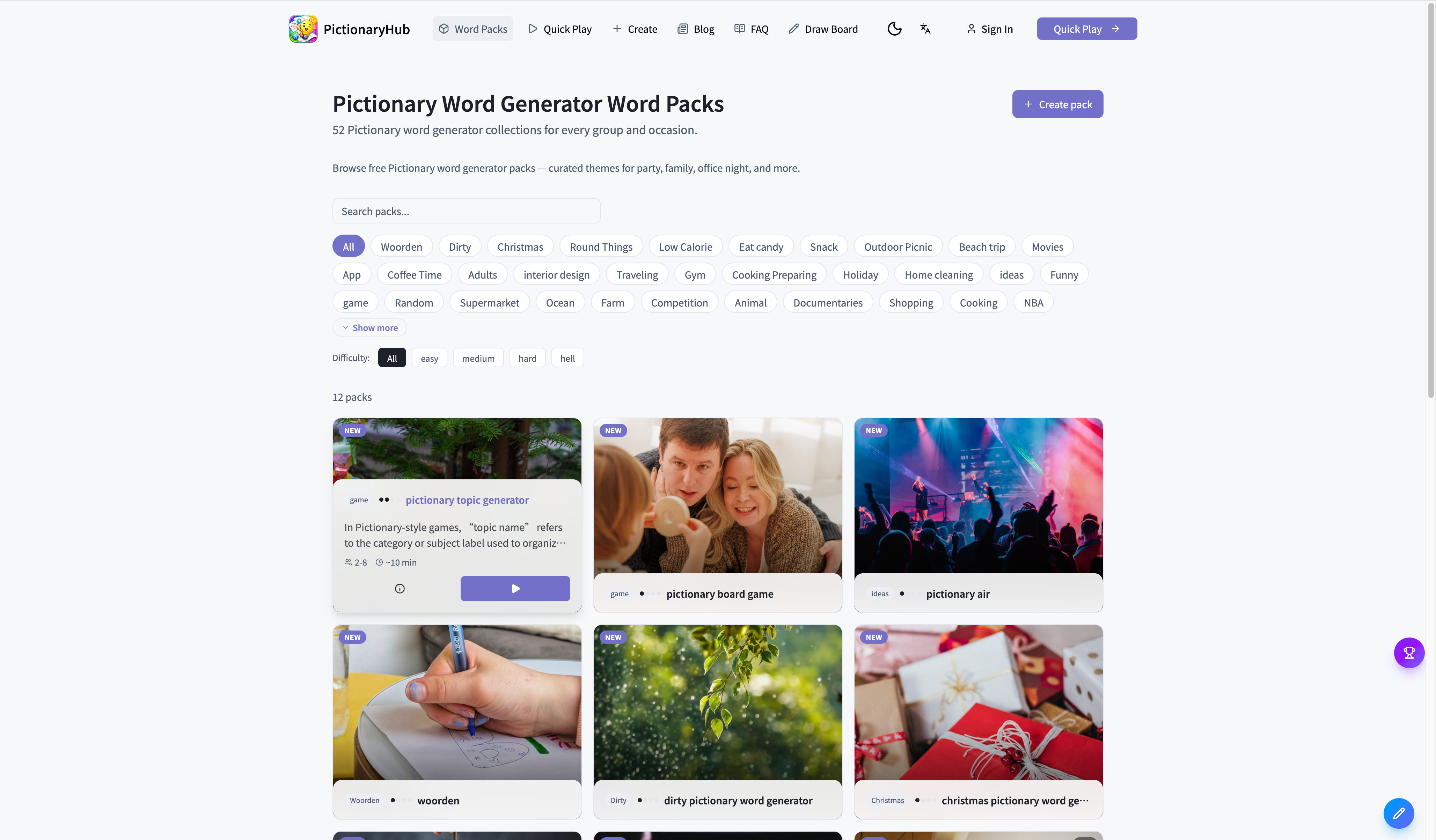
Go to Word Packs and filter by:
| Filter | Options |
|---|---|
| Scenario | Party / Office / Family / Kids / Holiday / Challenge |
| Difficulty | Easy / Medium / Hard / Hell 🔥 |
| Sort by | Most played / Highest rated / Newest |
Each pack card shows:
- Player count range (e.g. 2–20 players)
- Estimated duration (e.g. ~10 min)
- Word count
- Difficulty dots
Tap Details to preview the word list, or Play to jump straight to the game setup.
Creating a Custom Word Pack
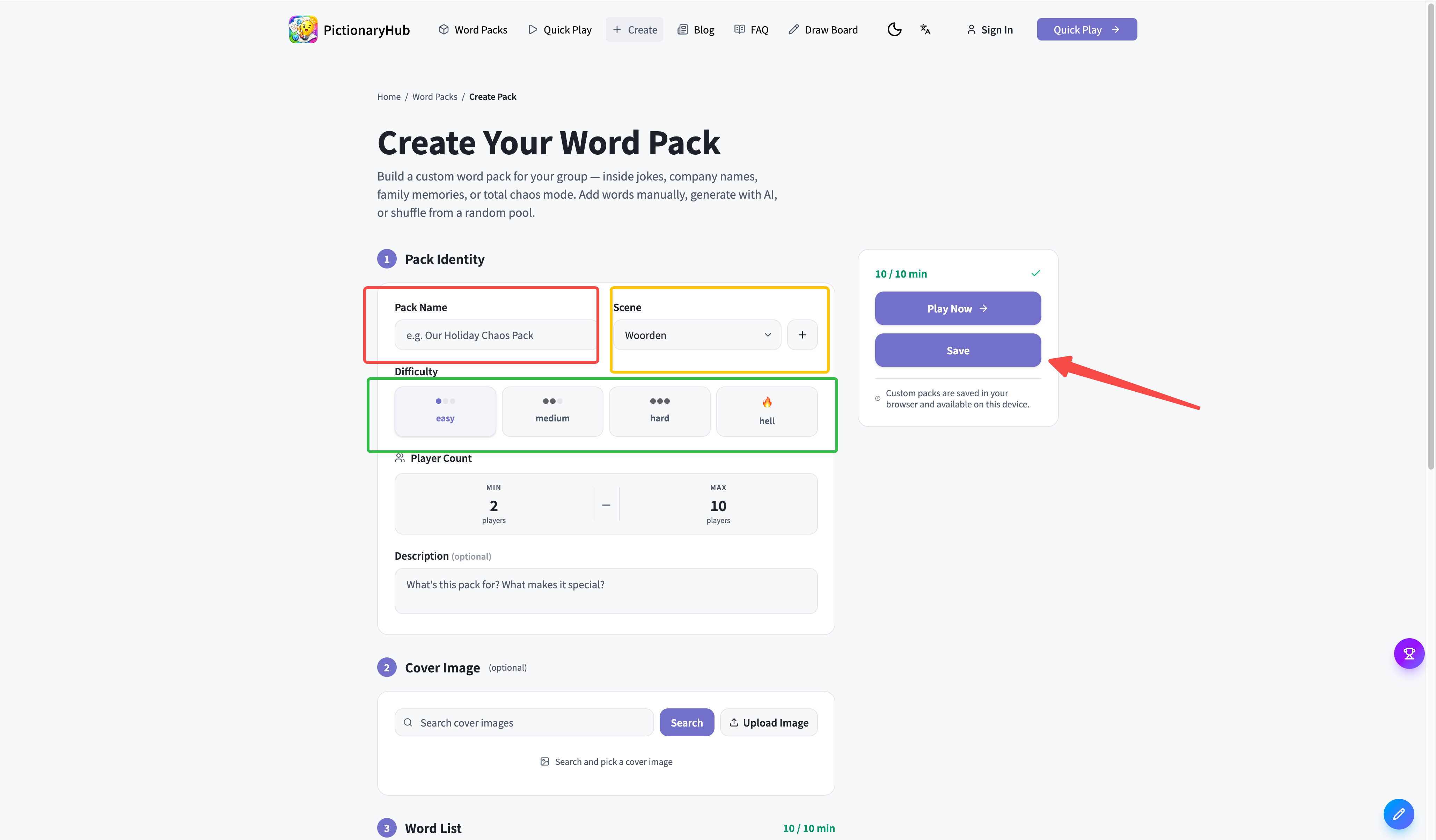
Go to Create Pack:
Step 1: Pack Identity
- Pack name
- Scenario (Party / Office / Family, etc.)
- Difficulty
- Cover image (optional)
Step 2: Add Words
Three methods:
① AI Generate
- Describe a theme, e.g. "90s cartoons" or "startup office life"
- Click AI Generate — a word list appears instantly
- Edit or add more words on top of the AI result
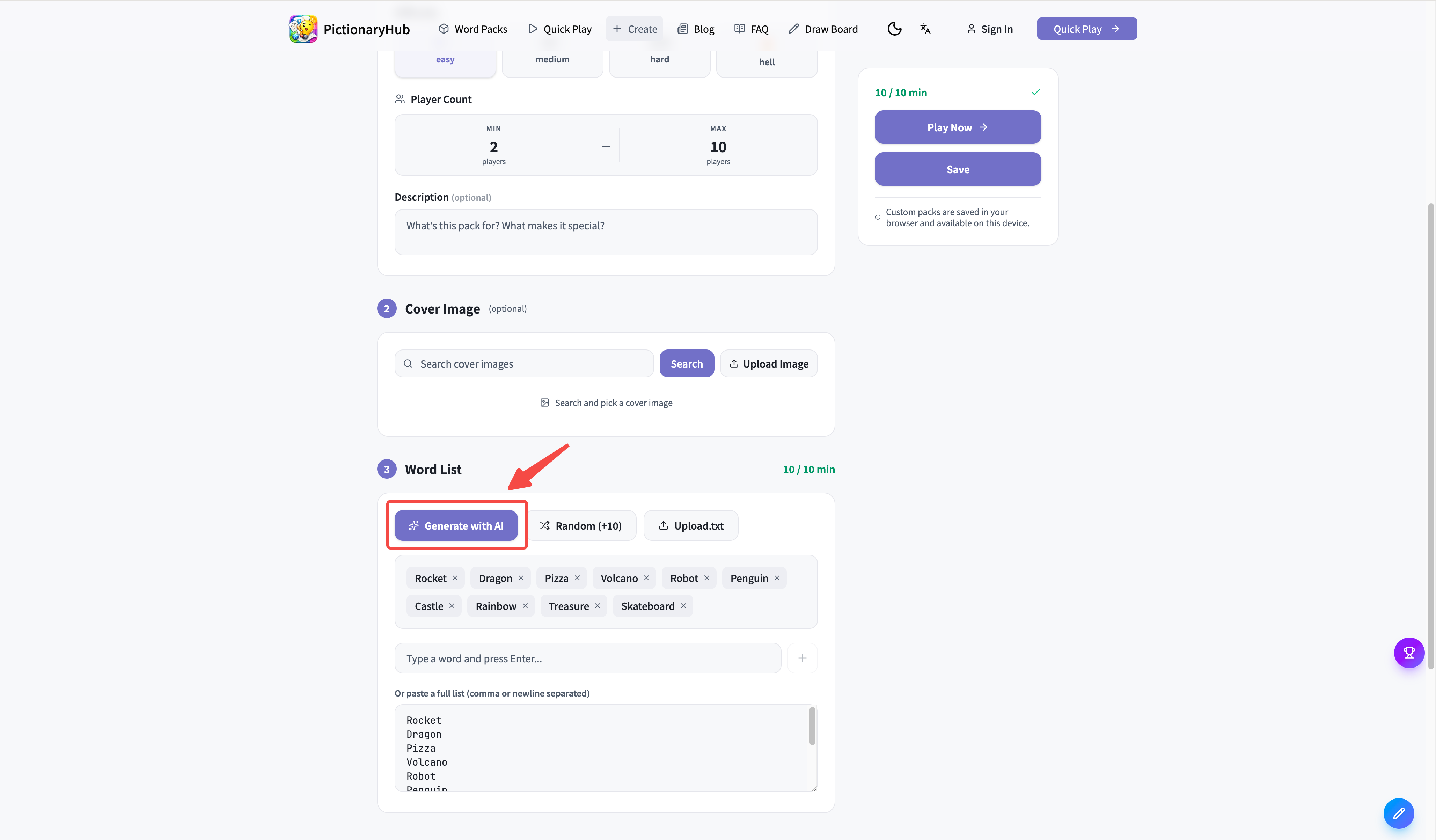
② Manual Entry
- Type words one by one
- Best for inside jokes, company-specific terms, family nicknames
③ Random Pool
- Click Random to pull a starter set from the word library
- Edit from there
Step 3: Publish
- Minimum 10 words required to publish
- Published packs appear on the Word Packs page
- Or choose "play once" to use the pack without saving
Timer Presets
| Preset | Time per word | Words | Best for |
|---|---|---|---|
| Classic | 60 sec | 20 | Standard game night |
| Speed | 35 sec | 15 | Experienced players, fast rounds |
| Marathon | 80 sec | 30 | Relaxed, longer sessions |
| Custom | Your choice | Your choice | Full flexibility |
In-Game Controls
| Button | What it does |
|---|---|
| GOT IT | Correct guess — scores a point, next word loads |
| Skip | Pass this word — no score |
| Failed | Time's up, not guessed — next word loads |
| ⛶ Fullscreen | Toggle fullscreen mode |
| 🔊 | Toggle sound effects |
| 📳 | Toggle vibration feedback |
| A | Adjust word font size |
| Quit | End the game, return to home |
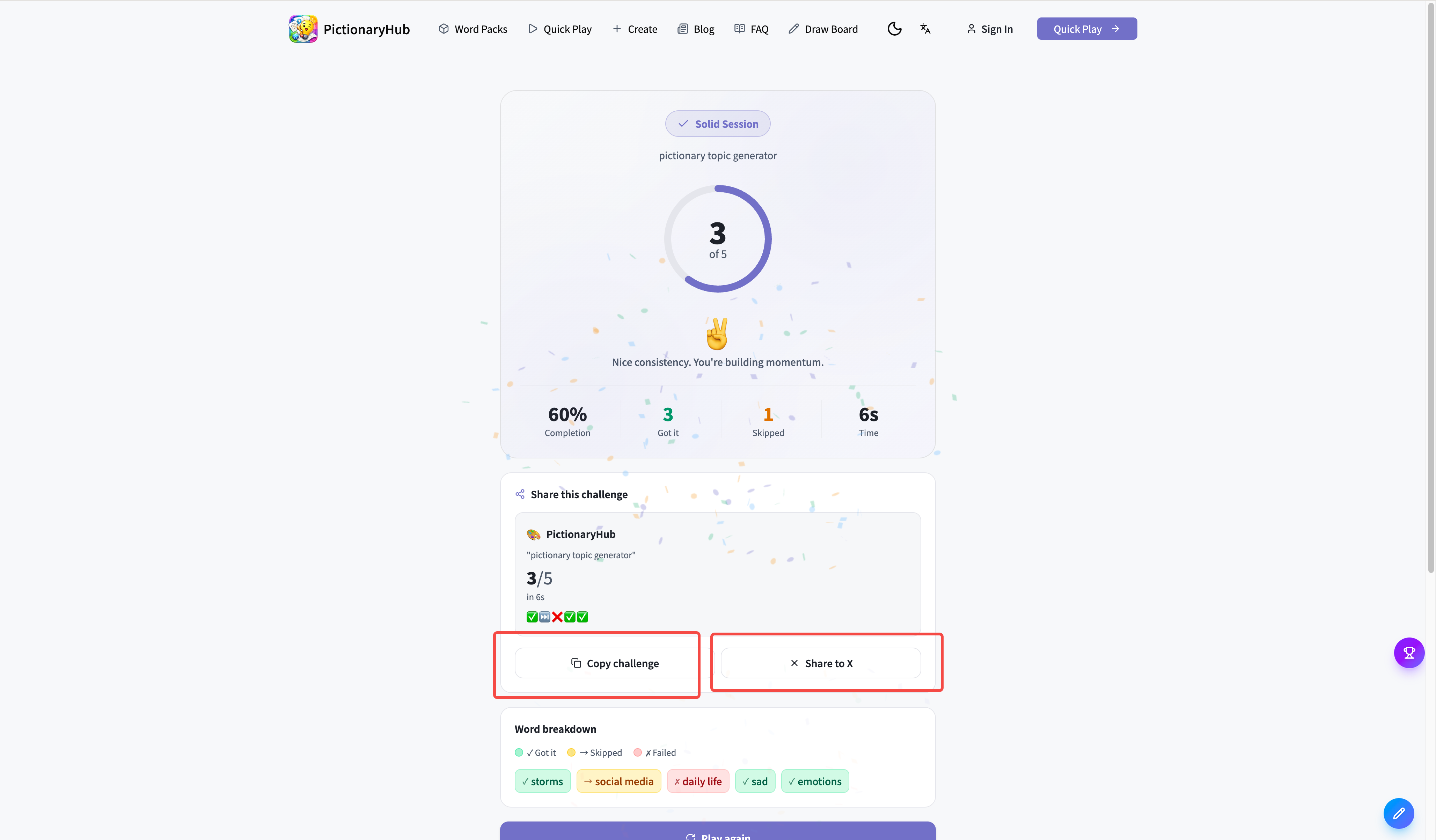
Challenge Links
After each game the results page shows a Share Challenge button:
- Tap it to generate a challenge link
- Send it to anyone (iMessage, WhatsApp, Twitter — anywhere)
- They open the link and play the same pack with the same settings
- Compare scores side by side
Organizing an In-Person Group Game
Option A: Pass the Phone (Easiest)
- One person's phone is the "game console"
- Pass it to the drawer at the start of each turn
- Everyone else watches and guesses out loud
- Drawer taps GOT IT when the word is guessed, moves to next
Option B: Cast to a Big Screen
- Mirror your phone or laptop to a TV / projector
- Drawer sketches on paper or a whiteboard
- The big screen shows the word card and timer for everyone
Option C: Team vs. Team
- Split players into 2 teams
- Teams alternate sending a drawer each round
- Track each team's GOT IT count separately
- Compare totals after all rounds
Playing Remotely
- Start a Zoom / Google Meet / Teams call
- The drawer screen-shares the Draw Board mode
- Everyone watches the live drawing and guesses in chat or voice
- Drawer taps GOT IT in PictionaryHub to track scores
FAQ
Q: What happens if Wi-Fi drops mid-game?
Once a pack is loaded, the game runs locally on-device. Losing connection won't interrupt an active round.
Q: Can I pause the game?
There is no pause button yet. Tap Quit to exit, then start a new round when you're ready.
Q: The word is too hard to draw — any help?
Enable Drawing Hints before starting the game. A reference photo will appear next to each word to inspire the drawer.
Q: What is the minimum number of players?
2 players works fine (one draws, one guesses). The sweet spot is 4–8 players; up to 20 players in a large group is supported.
Q: Where can I see past game history?
Sign in with Google or GitHub, then go to Activity in the top menu to see all previous rounds and scores.